
Two-Factor Authentication
Two-factor authentication (2FA) adds a verification-code step to every sign-in, on top of your email and password. It’s managed from your own account — no admin involvement needed to turn it on or off.
Enabling 2FA
Section titled “Enabling 2FA”Go to Settings → Security. The Two-Factor Authentication panel is on the right, next to Change Password.
- Choose “Send code via” — Email or SMS.
- Click Send Verification Code.
- Check your email or phone for the 6-digit code, and enter it in the Verification Code field that appears.
- Click Enable 2FA.
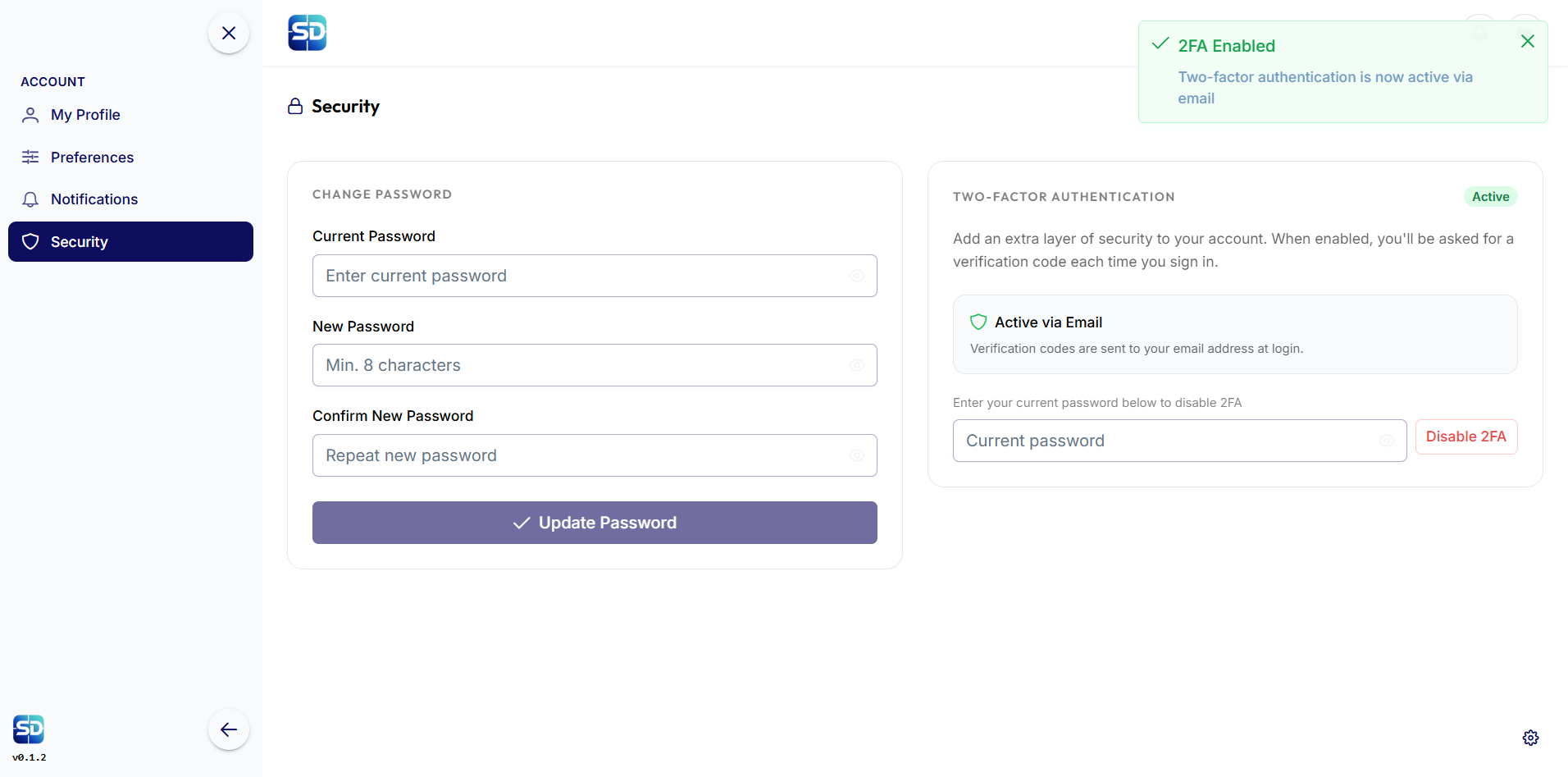
Once enabled, the panel shows an Active badge, and every future sign-in will ask for a fresh verification code — see Signing In’s two-factor verification step for what that looks like.
Disabling 2FA
Section titled “Disabling 2FA”The same panel shows your current method (“Active via Email” or “Active via SMS”) once 2FA is on. To turn it off:
- Enter your current password in the field shown under “Enter your current password below to disable 2FA”.
- Click Disable 2FA.
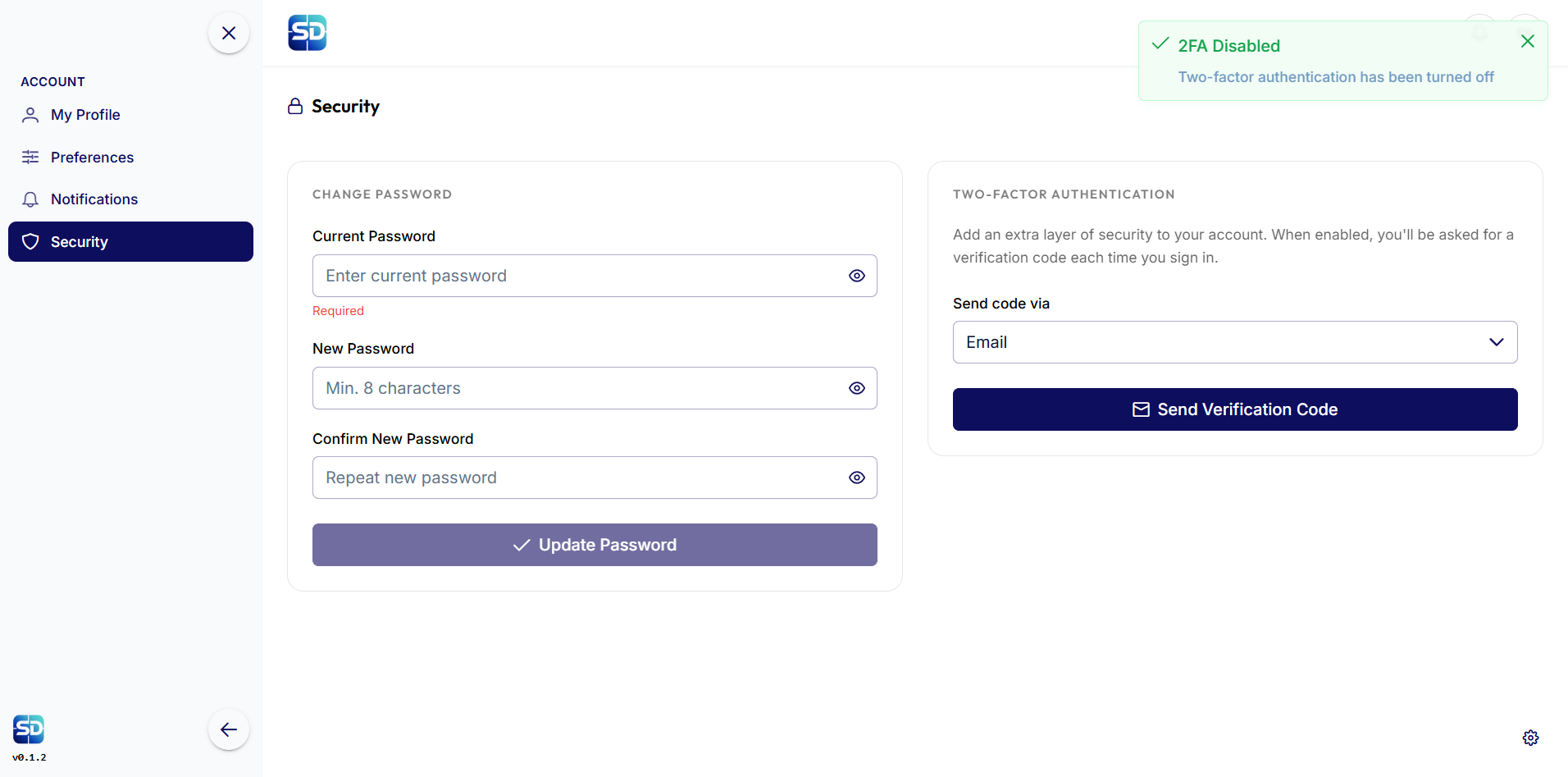
Can I switch from Email to SMS (or back)?
Not directly — disable 2FA first (with your current password), then enable it again choosing the other method.
I lost access to my email/phone — how do I sign in?
Contact your organization admin (or your ServiceDock representative) for help regaining access — 2FA can’t be bypassed from the sign-in screen itself, by design.
Is this the same as the code I enter when my password is reset?
No. The reset-password flow uses a one-time token sent to your email to let you set a new password — see Resetting Your Password. Two-factor authentication is a separate, ongoing verification step at every sign-in, and only applies once you’ve enabled it here.
Where do I change my password without a reset link?
The Change Password panel is right next to Two-Factor Authentication on the same Settings → Security page — see Changing your password while signed in for the full walkthrough.
I entered the wrong code too many times while enabling 2FA — what now?
The same protection applies here as at sign-in — after 5 wrong attempts you’re locked out of verification for 30 minutes, and requesting another code won’t shortcut that. Wait for the lockout to clear, then click Send Verification Code again to get a fresh one.