
Claiming Your Invite
If someone has just set you up with a ServiceDock account — a new hire being added to your company’s organization, or a contractor account created for you — you’ll receive an email with an activation link. That link opens this page and carries a one-time token with it, so you don’t need to go looking for it or type anything from the email yourself.
Setting your name and password
Section titled “Setting your name and password”Opening the link from your invite email takes you straight to the activation form. You’ll need:
- First Name and Last Name — how you’ll appear to the rest of your team.
- Password — minimum 8 characters.
- Confirm Password — the same password again.
You’ll also need to complete the human-verification checkbox (Cloudflare Turnstile) before the form will submit.
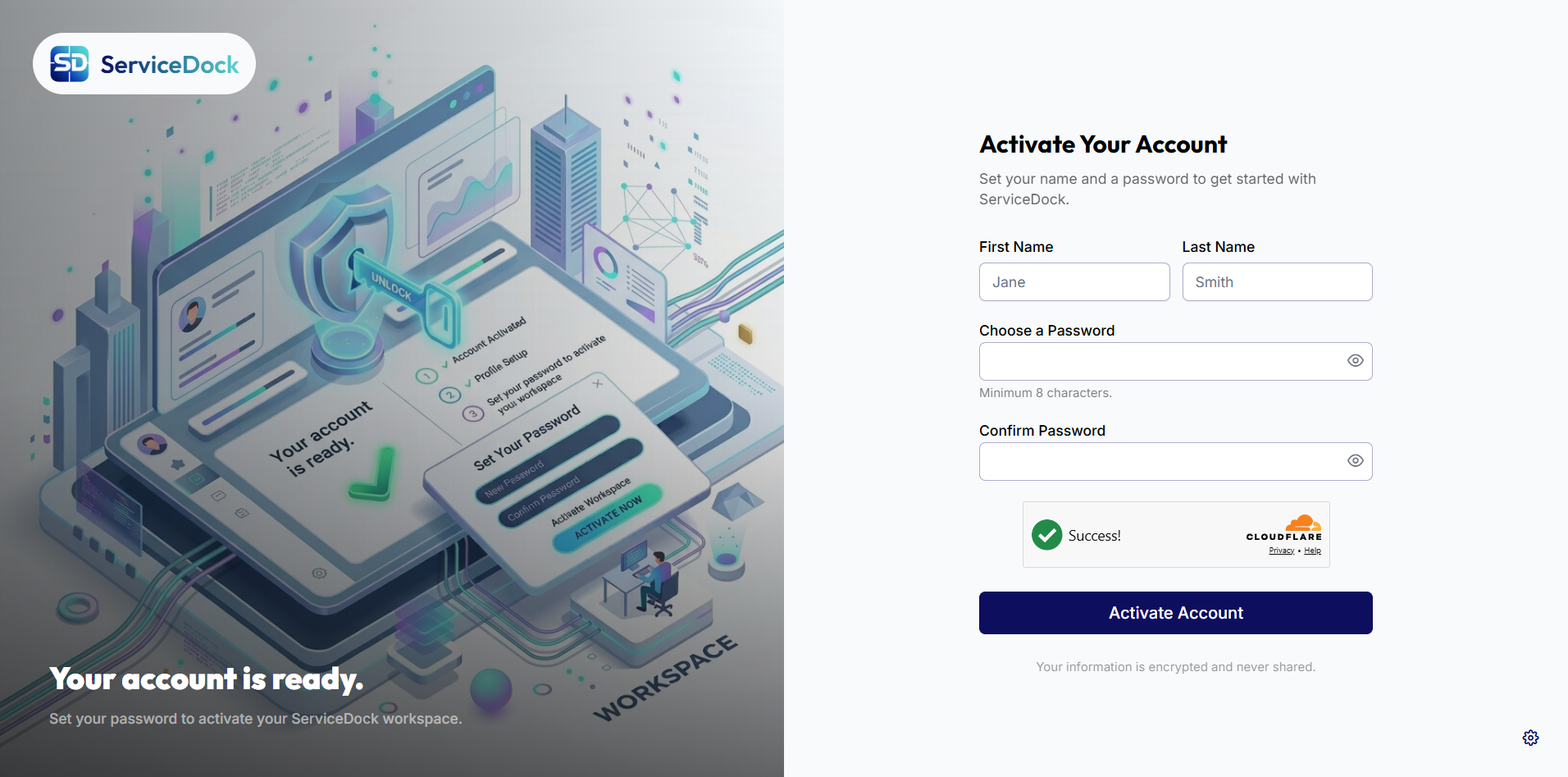
- Enter your first and last name.
- Choose a password (min. 8 characters).
- Re-enter it in Confirm Password.
- Complete the human-verification checkbox.
- Click Activate Account.
After activating
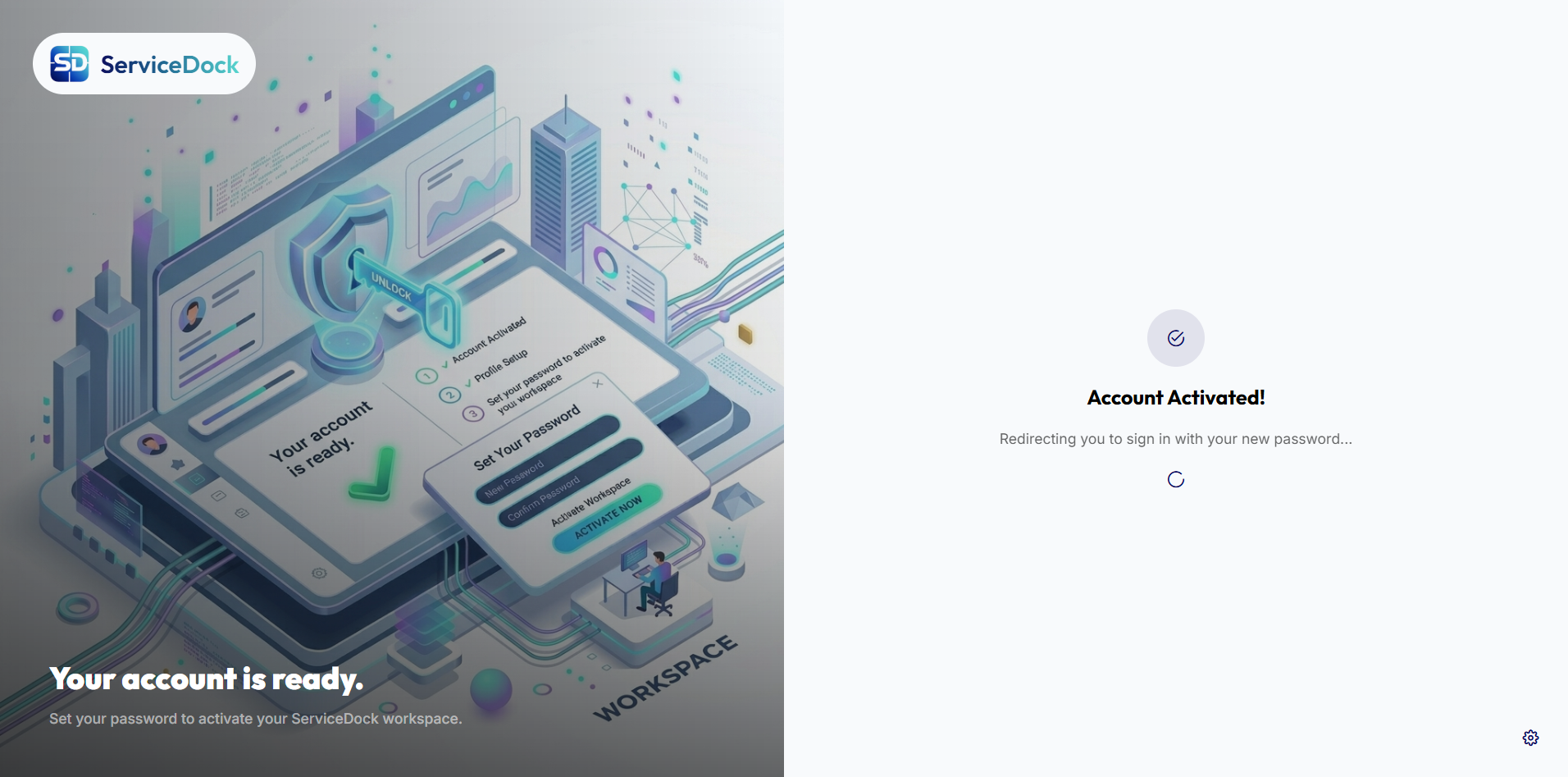
Section titled “After activating”Once it succeeds, you’ll see an Account Activated! confirmation and be redirected automatically to the sign-in page a moment later, with your email already filled in — just enter the password you chose to sign in for the first time.
The link says it's expired or already used — what do I do?
Invite links are single-use and time-limited. Contact whoever set up your account (your organization admin, or your ServiceDock representative) and ask them to resend the invite — this issues a fresh link and invalidates the old one.
I'm already logged in as someone else — what happens?
The page will ask you to log out first before you can claim the invite. You can’t claim a new account while another one is active in the same browser session.
Do I need to set up an organization or company details here too?
No — this page only activates your personal login (name and password). Any organization or company setup happens separately, later on, once you’re signed in.
The human-verification checkbox won't complete — what's wrong?
Try refreshing the page and attempting again. If it keeps failing, it may be a network/browser extension issue (ad blockers and some privacy extensions can interfere with Cloudflare Turnstile) — try a different browser or disabling extensions for this site.