
Resetting Your Password
This same flow covers two situations: you’ve forgotten your password and want to reset it yourself, or ServiceDock redirected you here automatically after signing in (a brand-new account, or one an administrator just reset). Either way, the steps below are identical.
Requesting a reset link
Section titled “Requesting a reset link”From the sign-in page, click “Forgot password?”. You’ll need:
- Email — the email address on your account.
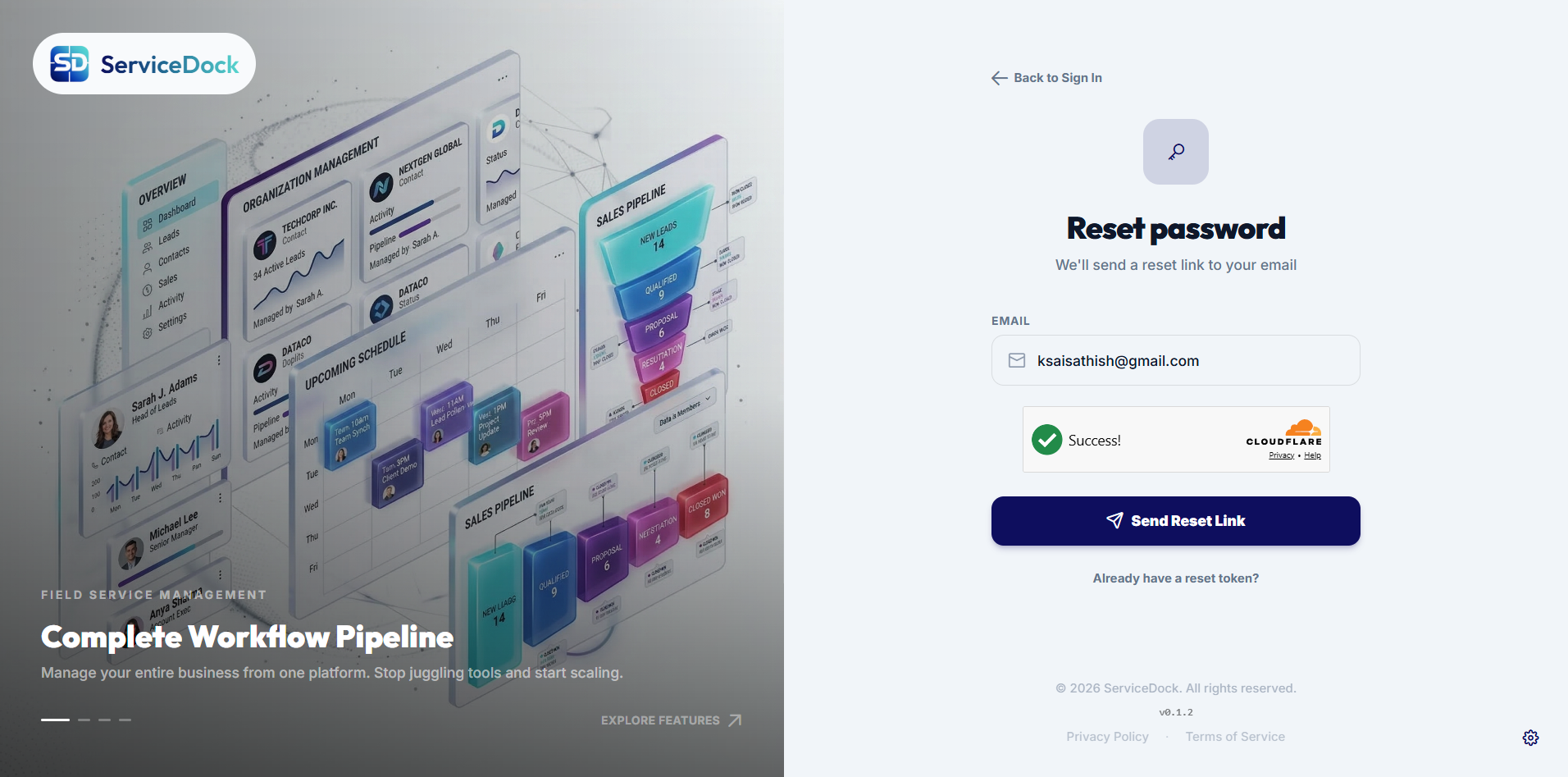
- Click “Forgot password?” on the sign-in page.
- Enter your email — already filled in if you’d typed it on the sign-in page first.
- Complete the human-verification checkbox.
- Click Send Reset Link.
You’ll see the same “reset link sent” confirmation whether or not that email actually belongs to a real account — this is intentional, so the form can’t be used to guess valid emails.
Already have a reset token (from a link you already received)? Click “Already have a reset token?” at the bottom of this screen to skip straight to the next step.
Setting your new password
Section titled “Setting your new password”Opening the link from that email takes you to the Set new password screen, with your token already filled in. You’ll need:
- Reset Token — pre-filled automatically from the emailed link (or paste it in yourself, if you got here via “Already have a reset token?”).
- New Password.
- Confirm Password — the same password again.
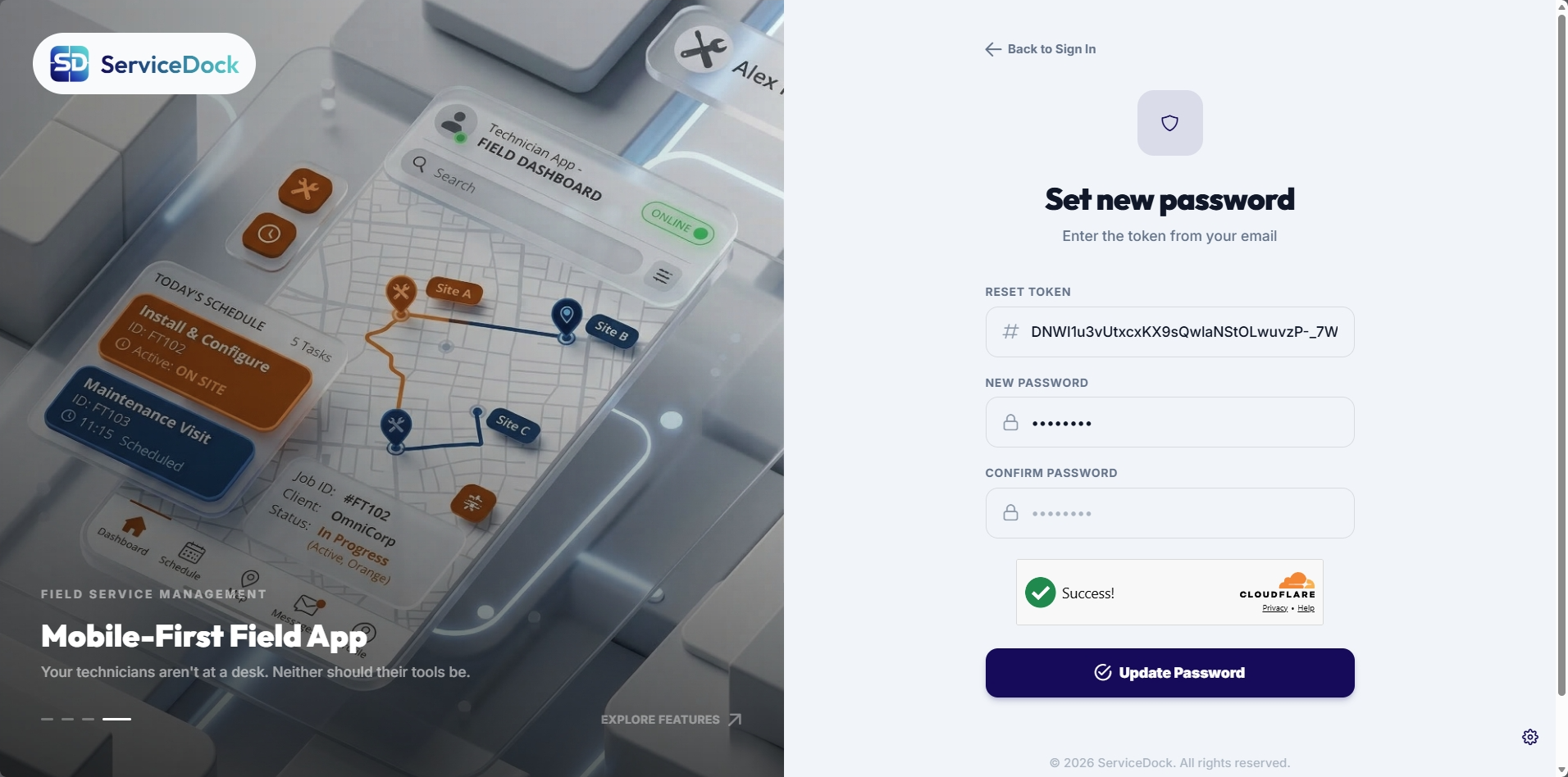
- Confirm the token field is filled in (it should be already, from the link).
- Enter a new password.
- Re-enter it in Confirm Password.
- Complete the human-verification checkbox.
- Click Update Password.
Once it succeeds, you’re sent back to the sign-in page — sign in with your new password to continue.
Changing your password while signed in
Section titled “Changing your password while signed in”If you’re already signed in and just want to update your password — not because you forgot it — you don’t need the reset-link flow above at all. Go to Settings → Security. The Change Password panel is on the left, next to Two-Factor Authentication.
- Current Password.
- New Password — minimum 8 characters.
- Confirm New Password — the same password again.
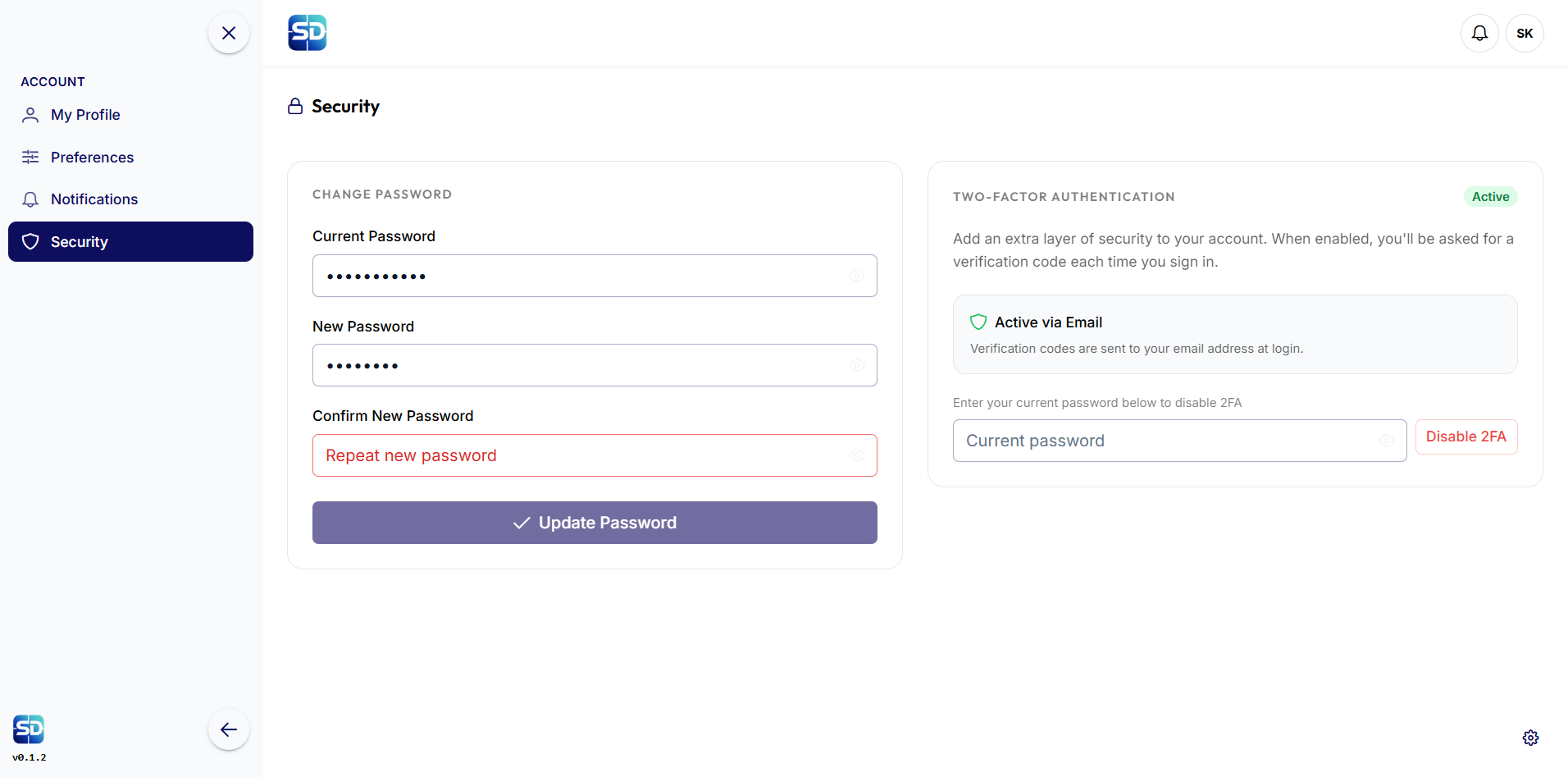
- Enter your current password.
- Enter a new password (min. 8 characters).
- Re-enter it in Confirm New Password.
- Click Update Password.
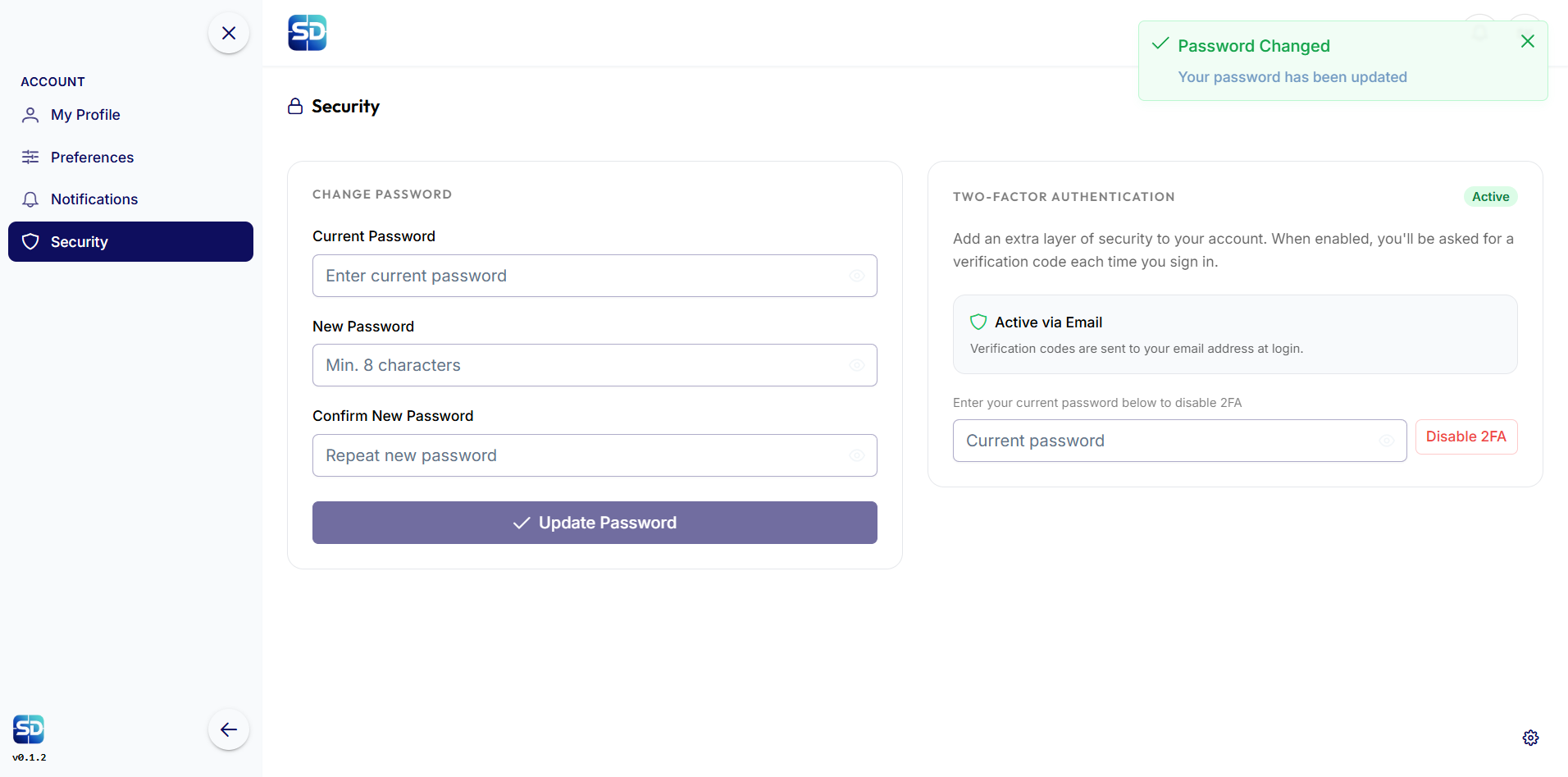
You’ll see a Password Changed confirmation and the form clears — no sign-out or redirect, you stay right where you are.
I was sent here automatically after logging in — did something go wrong?
No. Any account that’s brand-new, or whose password an administrator just reset, is required to set its own new password before continuing — this happens automatically right after a successful login attempt. Just follow the steps above with the email you just tried to sign in with.
I didn't get the reset email — what do I do?
Check spam/junk first. Since the confirmation message shows regardless of whether the email is registered (a deliberate security measure), a missing email doesn’t necessarily mean something’s broken — if it never arrives after a few minutes, double check you entered the right address, or contact your organization admin.
The reset token says it's invalid or expired — what now?
Request a new one from the sign-in page’s “Forgot password?” link. Reset tokens are single-use and time-limited, so an old link — or one you’ve already used — won’t work a second time.
I'm already logged in and just want to change my password — do I need to do this?
No — see Changing your password while signed in above instead. This reset-link flow is only for when you can’t sign in at all.